To do
- change skiwi
- update prerequisites
- remove this comment
Summary: A recipe to install PHP on IIS for PmWiki
Version: 2026-10-10
Prerequisites: PmWiki pmwiki-2.7.8; PHP 8.5.12+ (NTS x64); Windows 10; IIS with CGI/FastCGI enabled
Status: Beta
Questions answered by this recipe
How do I install PHP on IIS (Windows 10) for PmWiki
Overview
This guide covers manually installing PHP on Internet Information Services (IIS) on Windows 10.
Windows 10 can run PHP under IIS using FastCGI.
Older IIS PHP methods such as ISAPI and PHP Manager are deprecated and should not be used.
Requirements
- Windows 10
- IIS installed
- Windows Administrator access
- PHP Non-Thread-Safe (NTS) x64 ZIP package from php.net
Recommended
Installation Notes
- no Web Platform Installer (WebPI): Microsoft officially retired WebPI in December 2022.
- sse FastCGI with NTS PHP: Always use the "Non-Thread Safe (NTS)" 64-bit build of PHP. The FastCGI module handles thread isolation, so NTS is required for performance and stability.
- do not use ISAPI or Thread Safe builds
Installation
Step 1: Enable IIS and FastCGI
Enable IIS and CGI support from Control Panel → Programs and Features → Turn Windows features on or off
Enable under Internet Information Services
- Web Management Tools - IIS Management Console
- World Wide Web Services - Application Development Features → CGI
- World Wide Web Services - Common HTTP Features: Default Document; Directory Browsing; HTTP Errors; Static Content
- World Wide Web Services - Health and Diagnostics: HTTP Logging; Logging Tools; Request Monitor
- World Wide Web Services - Performance Features: Dynamic Content Compression; Static Content Compression
- World Wide Web Services - Security: Request Filtering; URL Authorization; Windows Authentication
This installs FastCGI support.
Download PHP for Windows
- Download the latest Non-Thread-Safe (NTS) x64 ZIP from: php.net
- Extract it to a folder such as:
C:\Program Files\PHP\php-v9.9.9
IIS requires NTS builds.
PHP requires the Visual C++ Redistributable for Visual Studio 2015‑2022 x64 installed.
Configure php.ini
- Navigate to
C:\Program Files\PHP\php-v9.9.9.
- Copy the file
php.ini-production and rename the copy to php.ini.
Initial PHP installation
- Open
C:\Program Files\PHP\php-v9.9.9\php.ini in a text editor like Notepad++ (running as Administrator).
- Update or uncomment the following directives (remove the leading ";"):
; Set the extension directory path
extension_dir = "C:\Program Files\PHP\php-v9.9.9\ext"
; Required FastCGI settings for IIS
fastcgi.impersonate = 1
cgi.fix_pathinfo = 1
cgi.force_redirect = 0

; Core extensions needed for general PHP and PmWiki support
extension=curl
extension=fileinfo
extension=gd
extension=mbstring
extension=openssl
extension=session
Upgrade PHP installation
Use WinMerge to compare and merge to old to new php.ini files
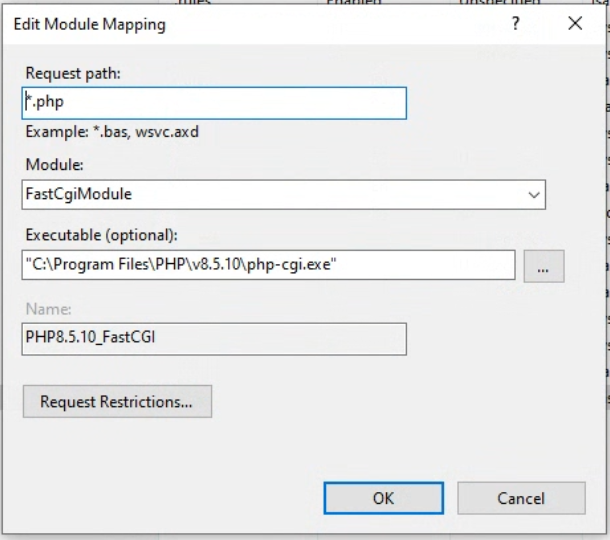
Configure IIS Handler Mapping
Configure IIS to process .php requests using FastCGI.
Open IIS Manager:
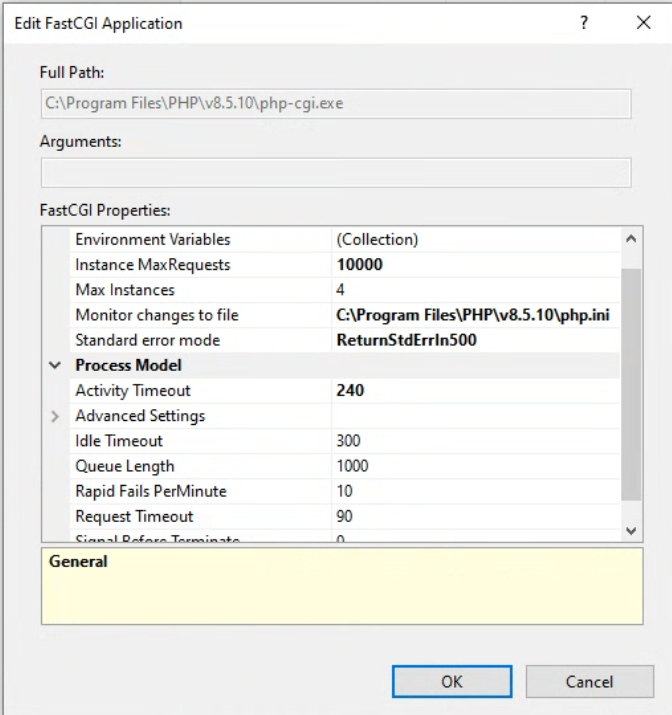
Configure FastCGI Settings
In IIS Manager:
- Select the server node
- Open
FastCGI Settings
- Add the application
php-cgi.exe
- Select the entry for
php-cgi.exe
Edit the following values:
InstanceMaxRequests = 10000
MaxInstances = 4
ActivityTimeout = 240
RequestTimeout = 90
Add index.php to Default Documents
Ensure IIS serves index.php automatically when opening a directory (important for PmWiki URL routing).
- In IIS Manager, click your computer name in the left panel.
- Double-click Default Document.
- In the Actions pane on the right, click Add....
- Type
index.php and click OK.
- Use the Move Up button in the actions pane to position
index.php near the top of the list.
<?php
if (chdir('pmwiki')) include_once('pmwiki.php');
?>
Restart IIS
Restart IIS to apply changes:
iisreset
Or use the IIS Manager restart option.
Notes for PmWiki and KiwiWiki
PmWiki runs well under IIS + FastCGI.
Recommended settings:
upload_max_filesize = 32M
post_max_size = 32M
Suggested opcache settings:
opcache.enable=1
opcache.validate_timestamps=1
opcache.revalidate_freq=2
IIS URL Rewrite
For Cookbook:CleanURLs.
web.config
IIS Directory permissions
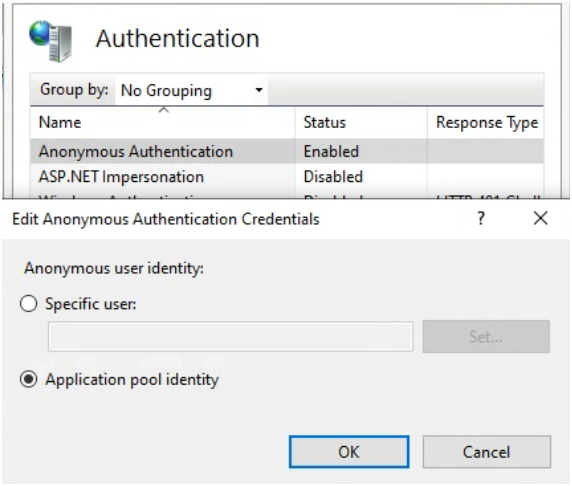
IIS permissions should be applied at the application pool level; e.g. with the identity for the site; e.g. "IIS APPPOOL\MySite"
Grant the application pool identity the permissions on the folders using Right‑click > Properties > Security
Set the "anonymous user identity" to "Application pool identity (recommended), or apply the permissions below to the specific IIS identity "IIS_IUSRS" or "IUSR" as well (not recommended).
IIS Website root directory permissions
The root directory and pmwiki directory require
- read & execute, list folder contents and read permissions.
IIS wiki.d and uploads directories
- modify (read and execute, kist folder contents, read, write)
IIS Temp directory permissions
For PHP and PmWiki to create and clean up temporary files on Windows these permissions are the minimum required on the folder "C:\Windows\Temp":
- modify (read and execute, list folder contents, read, write)
Reset permissions
To reset the Access Control List on Windows and force permissions to propagate cleanly down to all subfolders:
icacls "D:\YourWiki\pmwiki\uploads" /reset /T /C
Viewing permissions
Use Cookbook:PmWikiInfo to view permissions.
Troubleshooting
HTTP 503 Service Unavailable
After upgrading PHP, IIS may still have a Handler Mapping pointing to the old php-cgi.exe.
Check in IIS both:
- Server > FastCGI Settings
- Site > Handler Mappings
Both locations should reference the same PHP installation directory.
A useful diagnostic is:
"C:\Program Files\PHP\php-v8.5.12\php-cgi.exe" -v
If this command runs successfully, PHP itself is probably working and the IIS configuration should be checked.
Permission errors
The message PHP Warning: touch(): Utime failed: No such file or directory in the PHP error log when running with Windows and IIS means that the application pool identity for the website does not have sufficient permissions to access the upload directory.
Change log
2026-10-10 add directory and application pool configuration
2026-05-05 Initial version
See also